Building a mini app to explore the design of Neon’s testimonials section
The story of how Pixel Point designed a globe of customer logos for Neon’s new homepage.
Start from this app
Run the CLI. Paste the copied command into your terminal.
Name your project. Choose a name, then let the CLI install the app and its dependencies.
Start building. Open the generated project and make it your own.

At Pixel Point, we recently worked on a design update for Neon’s homepage. Neon is an infrastructure company acquired by Databricks in 2025. It provides serverless Postgres and backend services such as authentication and storage to help teams build and scale applications.
Over the years, Neon had grown from a database company into a broader infrastructure platform, with more features and a growing customer list. On the new homepage, the team wanted to focus on testimonials, showing how Neon could be a reliable partner from a startup’s early days through to the largest enterprises.
We designed a large testimonials section that would end with some of Neon’s biggest customers and the numbers behind their stories. Testimonials can be boring, especially when there are lots of them and a long list of logos to show. We built a story around growth, with the design getting bigger and bolder throughout the section to emphasize those customer stories. After spending days exploring references and sketching rough ideas in Figma, we found an idea that felt right for what we needed.
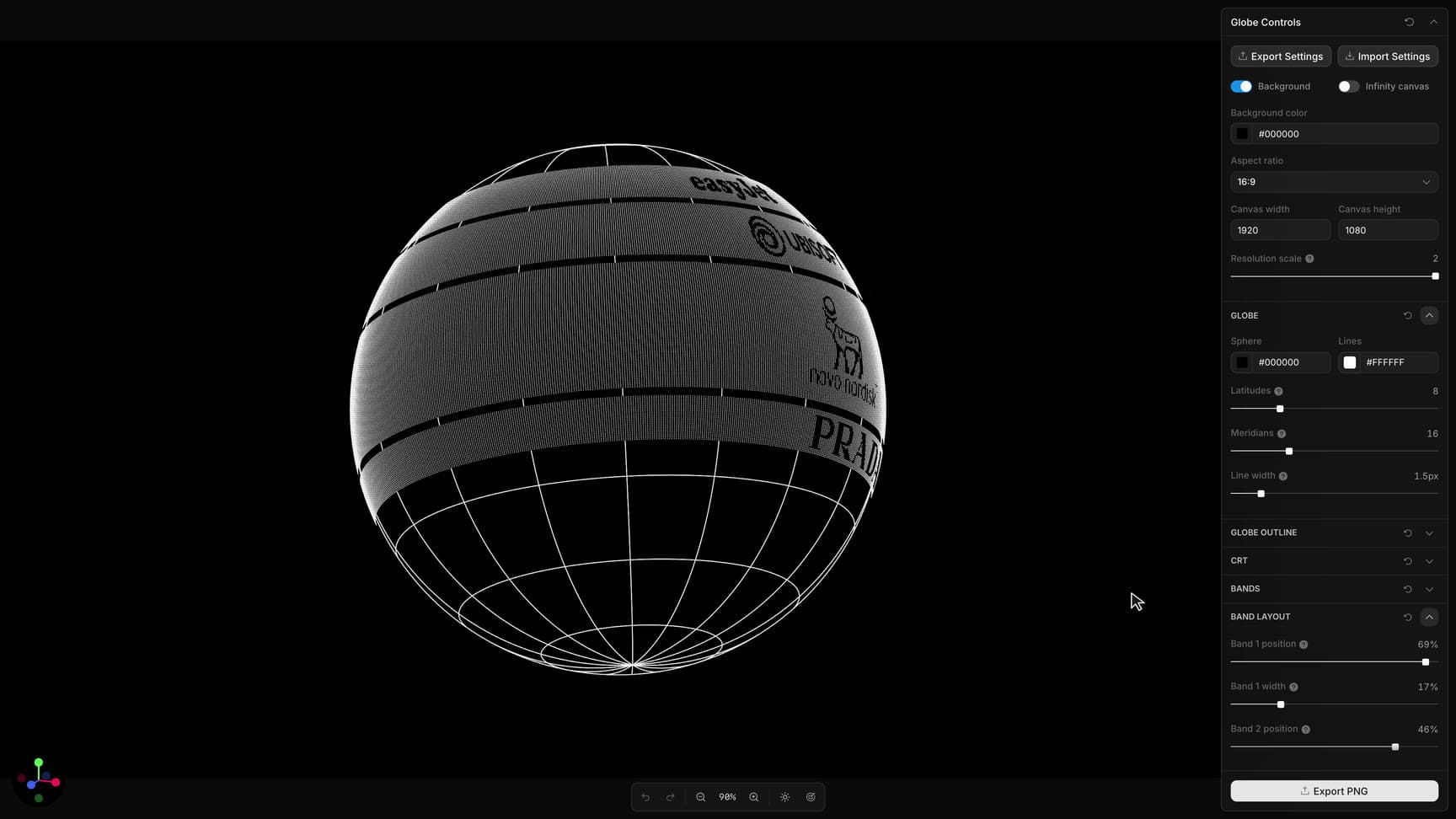
We wanted to show a globe made of lines, with bands of logos spinning around it. It sounded like an idea with plenty of potential, but how would we test it and experiment with the design? Drawing it in Figma or another design tool would be a pain. Trying different line densities, band widths, and logo sizes to see what would fit inside those bands would be a massive headache. We also wanted to avoid spending too much time on the handoff to the actual website.
Toolcraft felt like a perfect fit. We could design the globe directly in code, using the same stack we would run in production.
We started by creating a new project with the Toolcraft CLI:
Then we sent a prompt to the agent. This is the actual prompt our designer entered in Codex at the beginning of the work:
Initial prompt:
I want to create an application for generating a 3D globe for a landing page. The globe should be displayed on a #000000 background, with a canvas width of 1920 pixels.
The globe should consist of latitude and longitude lines, and I want to be able to control both their thickness and quantity. The globe sphere itself should be opaque and also #000000, while the latitude and longitude lines should be white.
Do not add any continent outlines or shapes.
I also want to be able to tilt the globe’s axis at different angles.
That was just the beginning. It took two days of work in total to reach the version you can see on Neon’s website and explore in this demo. You need to be prepared for that. AI won’t get every design idea right from a single prompt. Like any other tool, it still requires vision, taste, and time to get to a result that looks good.
For this app, we used Codex 5.6 in Extra High mode. One advantage of building your own app is that you can customize anything. When Neon sent us an updated list of logos, adjusting the visual was quick, even with the large, unusually shaped Novo Nordisk logo, whose proportions were very different from the others.
We then recorded the animation, put the video back into Figma, and presented it to the Neon team. You can ask the AI agent to add video export to the app, but sometimes pressing Record is faster when you just need a preview to show a client.
The Neon team was very happy with how the whole homepage update turned out. The next step was to update the actual website. Since the globe was already built in code, we could use the app’s source and our chosen settings to transfer it. Toolcraft lets you export the values of all your controls as a JSON file. You can then give that file to the agent with a prompt like this:
Transfer prompt:
Use this settings.json file to transfer the globe animation with these exact parameters from [path to Toolcraft app] to this website project. Place it below the section titled “Where the Fortune 500 scales”.
AI is good at translating and moving code, even between different stacks or languages. After a few iterations, the globe was working on the website. We then tested it across different devices and adjusted the design for different screen sizes.
With Toolcraft, you can build custom design software to solve your exact task when other tools can’t do it or make the process too slow.