Creating a custom app to design an interactive product demo for an AI image generation company
The story of how Pixel Point used Toolcraft to design the product demo section for Recraft’s landing page.
Start from this app
Run the CLI. Paste the copied command into your terminal.
Name your project. Choose a name, then let the CLI install the app and its dependencies.
Start building. Open the generated project and make it your own.

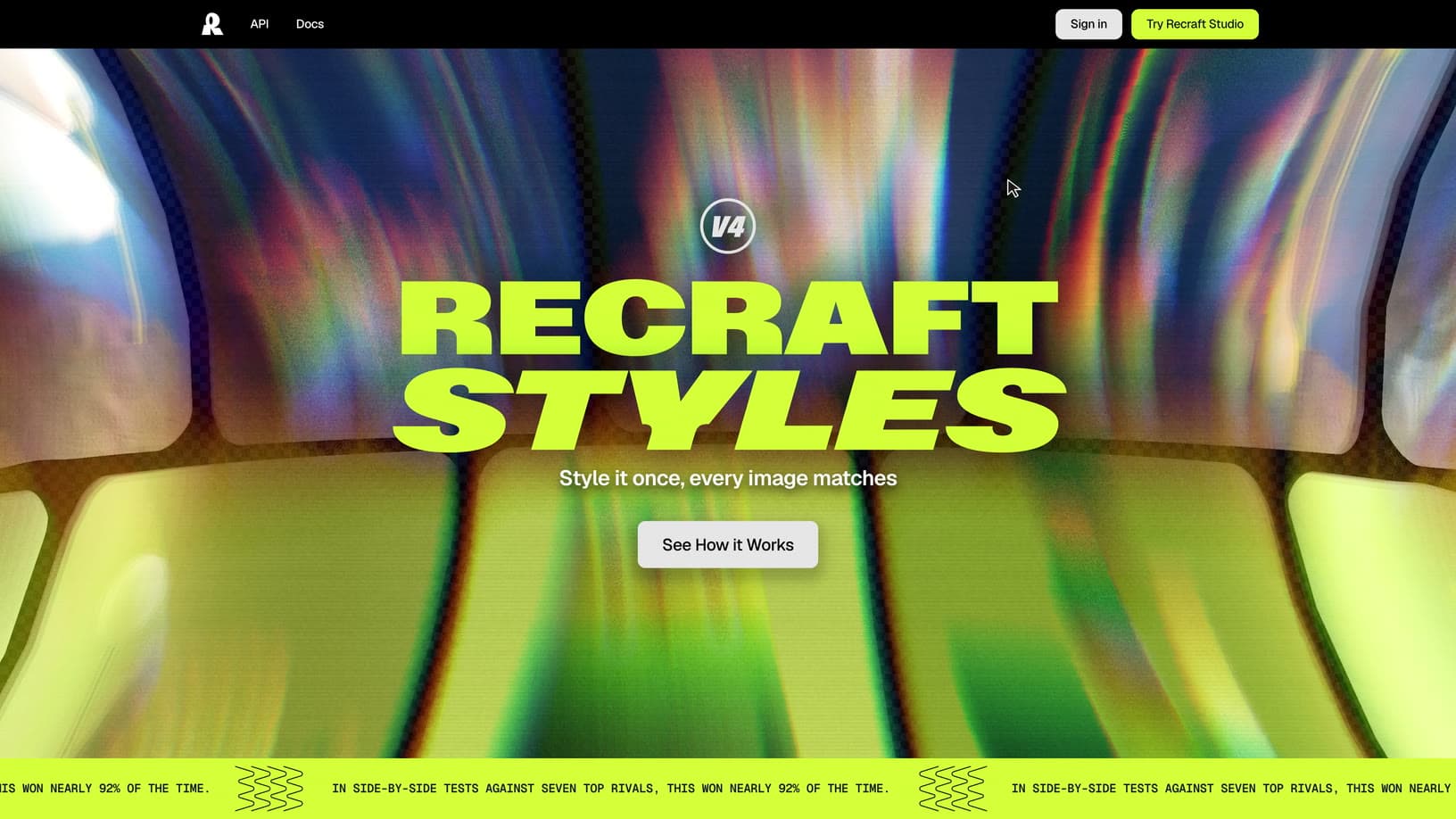
Our team at Pixel Point was designing a landing page for Recraft’s v4 Styles model. We’ve covered the overall project and our process for designing the hero in this case study. Alongside the hero, we were working on an interactive product demo section that needed to show what the model could actually do.
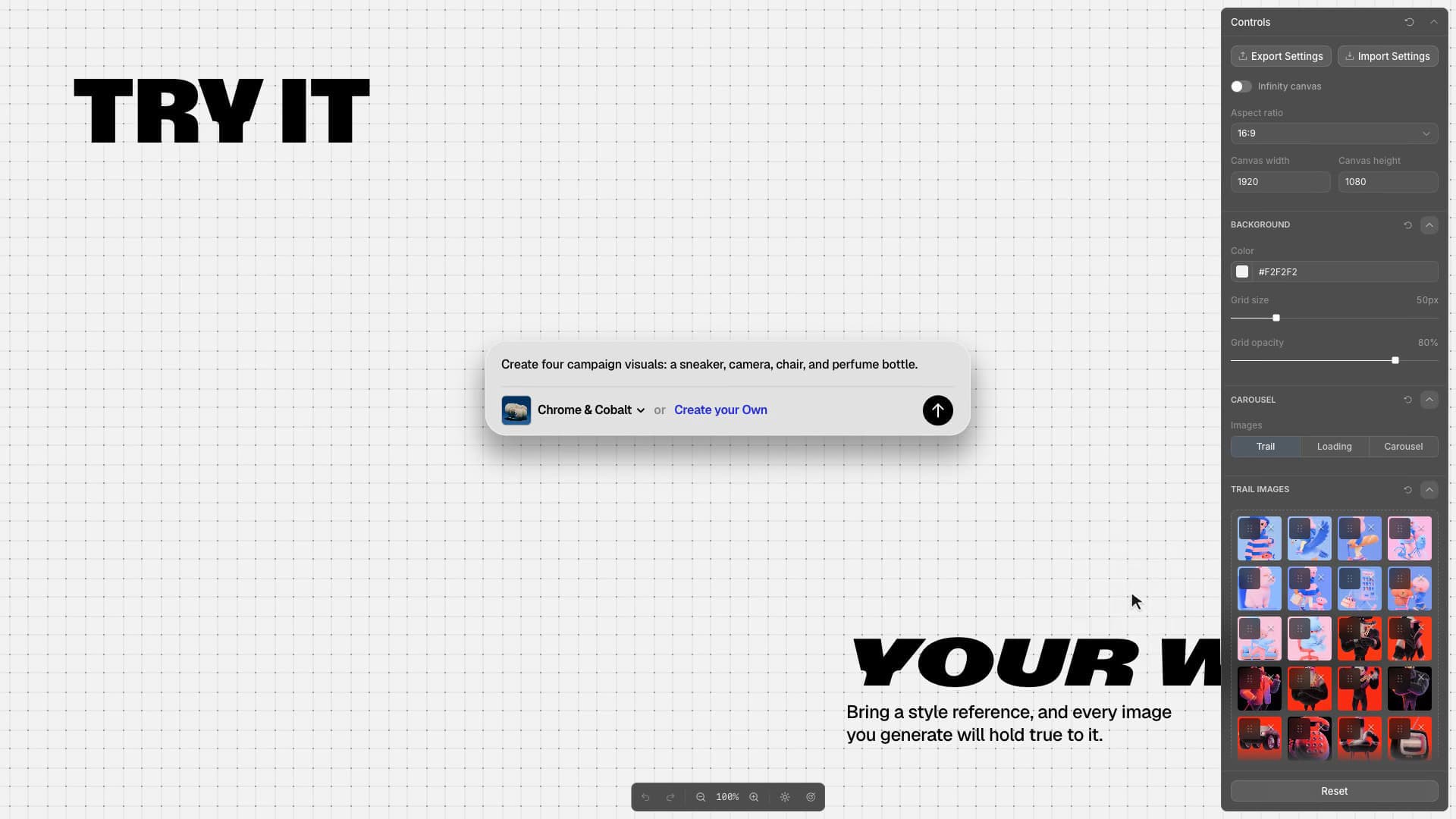
Recraft’s branding and the style we chose for the landing page were bold, with a strong fashion influence. For the product demo, we wanted to calm things down and keep the focus on the prompt area, with almost nothing else around it. We were designing this section directly in code and wanted to add something special without making it distracting. The idea was an image trail that appeared only when visitors moved their mouse and gradually disappeared when they stopped.
We could sketch it in Figma, but there was no way to quickly test how the interaction felt or experiment efficiently with image sizes and trail behavior there. That made it a perfect task for Toolcraft.
We created a new app with the Toolcraft CLI:
Then we asked the agent to connect our existing website to Toolcraft through an iframe. That let us keep developing the effect inside the website project, with the controls and experiments on the Toolcraft side.
Our starting prompt looked like this:
Initial prompt:
Build an app to control the product demo section below the hero. Embed the website in an iframe, with controls in Toolcraft and the actual component developed in the website project at [path to the folder].
Create an image trail that follows the mouse. Images should appear as the user moves the mouse and gradually disappear when they stop. Let me upload a batch of images for the trail and experiment with the rotation angle of each appearing image, motion timings, and how the images fade in.
Think through what other controls would help me experiment with the visual and add them to the app.
The image trail didn’t take long. We built the app and finalized the effect in a couple of hours, with maybe 10–20 prompts. But we also wanted to add a few small touches to the image generation sequence itself.
The section had two main layouts: one with the prompt input in the center, and another with the generated images in its place. The prompt input needed to move somewhere, so we thought it could leave a stacked trail behind as it moved to the side once the images were generated.
Using AI, we designed the missing pieces directly in code, then added controls to the app for switching quickly between the stages of the animation. We could test the initial state with the prompt input, the image generation state, and the final transition where the images appeared in the center and the prompt moved to the side.
Those controls made Toolcraft useful for testing as well as design. We could jump straight to the state we needed, check the transitions, and adjust each parameter precisely.
During the iterations, we’d also asked the agent to add an Apply button that saved our chosen control values directly into the website’s codebase. Once we were happy with the result, all we had to do was click it.