Creating a custom app to develop a brand’s signature visual and animation for the homepage hero section
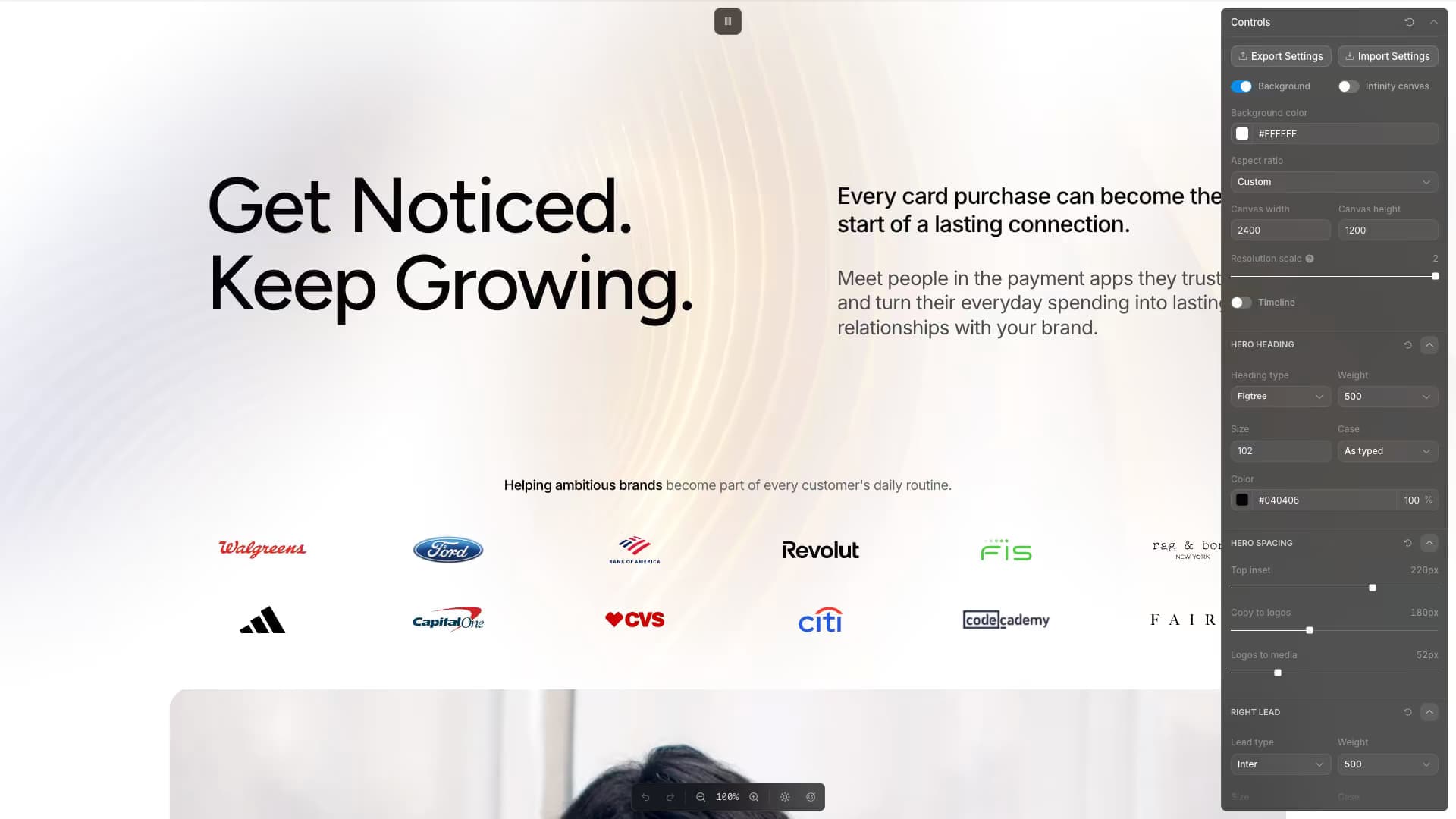
Compose a complete hero section with live 3D waves and soft masks.
Start from this app
Run the CLI. Paste the copied command into your terminal.
Name your project. Choose a name, then let the CLI install the app and its dependencies.
Start building. Open the generated project and make it your own.

We were working on a new website design and branding project at Pixel Point. Our client was inspired by the Oculus, the World Trade Center Transportation Hub in New York, and wanted something with a similar feel for their brand identity.
The idea was to use a pattern inspired by the building in the homepage hero and give it some gentle movement. The animation needed to be slow and pleasant, without distracting from the content. Maybe light could move along the edges, or the whole composition could slowly pan.
We could probably have drawn something similar in Figma, but it wouldn’t have been a scalable way to explore variations or experiment quickly with different animations and customization options. We chose Toolcraft to build a generator directly in code, which would also make it easier to transfer the result to the website.

We started a new project with the Toolcraft CLI:
Then we gave Codex an initial prompt, along with images of the Oculus and another reference image we’d generated in Recraft:
Initial prompt:
Bring the design of this section from Figma via MCP: [Figma link to a section design]. Build an app that displays an animated three-dimensional wave. It should look and feel similar to the Oculus, the World Trade Center Transportation Hub in New York. Use the supplied images as references. Let me add masks with soft edges to control which parts of the wave are visible. Figure out which controls would be most useful for experimenting with the masks, wave structure, materials, lighting, depth, typography, and spacing.
AI didn’t nail the design on the first iteration. In our experience, complex abstract shapes in 3D with subtle gradients and details aren’t AI’s strong point. Getting the app into decent shape took quite a few iterations, probably more than 50 prompts, using Fable 5 for planning and Codex for implementation.
We didn’t write a single line of code by hand, and we weren’t sitting around all day waiting for the AI. We checked in occasionally to prompt it while working on other tasks.
Once the app was ready and we could see it was capable of producing shapes we liked, we experimented with the controls and applied masks to blend the visual into the hero section. Then we transferred the result to the website.
To transfer the result, you can export your settings from Toolcraft as a JSON file containing the values you’ve chosen in the controls, then give the AI a prompt like this:
Transfer prompt:
Use settings.json to transfer the Oculus-inspired effect we built in this app to the hero section of the website project at [path to the website] on my computer.
This project is a great example of how you can use Toolcraft to experiment with a visual effect and add tools like masks to shape and blend the scene, covering the whole design process in your own custom app.